> For the complete documentation index, see [llms.txt](https://developers.newbluefx.com/llms.txt). Markdown versions of documentation pages are available by appending `.md` to page URLs; this page is available as [Markdown](https://developers.newbluefx.com/api-examples/creating-a-simple-controller.md).
# Creating a Simple Controller
The fastest and easiest way to get acquainted with writing Controllers is to walk through the steps of creating a simple one.
### Example Project
Unzip this template project exampleTemplate into a project development folder of your choosing.
{% file src="/files/leVYGrqRooKxYvKeIcKT" %}
Once unzipped, explore the project folders…
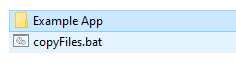
At the top level is the “Example App” folder and a batch file for installing the app (we will use this later.)
Click on the Example App folder.
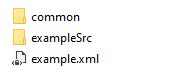
`common` includes two JavaScript files necessary for communicating with the API. These must be installed with the app.
`exampleSRC` carries the source for this example.
`example.xml` defines this controller. Captivate reads this to set things up, so you will need to create one of these for each Controller you write.
### Example.xml
Let’s start by looking in example.xml:
```xml
```
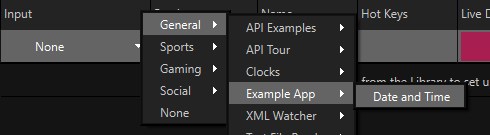
`name`: This sets the name of the controller. Note that the part before the colon, “Example App,” must match the name of the parent folder. The part after the colon will be used in the Captivate UI menu, in this case, “Date and Time.” The whole string that identifies this input, must be unique among all controller inputs and should be used in subsequent API calls.
`url`: This provides the location of the actual web page to load. If this were running off a cloud server, it would provide the full URL. In this case, it provides a relative path.
`iconOn`: This is an optional icon file used to display the icon for this controller in the Captivate title/layer list.
Next, this file lists all the variables that this input will provide to any title it is controlling. In this case, there are two variables, “Date” and “Time.” Both are “text” variables, meaning they provide text values.
### ExampleApp.html
Now, go into the `examplesSrc` folder where you will find the `aliens.png` and the `exampleApp.html` file.
Open `exampleApp.html` in your code editor:
```html
Date and Time
Click on buttons to trigger actions:
```
As you can see, this is a minimal application.
It has three buttons which will play a title in, update its values, and play it out.
Let’s see what each of these does.
Start by looking at the code for the first button:
```javascript
// When the user clicks on the Play In button, set the time and date variables and fly the title in.
document.getElementById('schedulePlayIn').onclick = function () {
// Create a json object for variables to set.
var variables = {};
// Set the current time and date.
var timeNow = new Date();
variables['Time'] = timeNow.toLocaleTimeString();
variables['Date'] = timeNow.toLocaleDateString();
// Send the AnimateIn action with this input as the sender, and the new variable settings.
ServiceHandler.scheduler.scheduleAction('animateIn', ServiceHandler.inputName, '', variables);
};
```
This creates a JavaScript object where each key is the name of an input variable and each value assigned to it is the string value for that Variable.
Then, it calls the `scheduleAction` API. [`scheduleAction`](/api-examples/sample-controllers-tour/01-schedule-action.md) is the core API function used to schedule “actions” on a title. Actions are special commands that manage title playback.
The parameters are:
| Parameter | Description |
| ----------- | -------------------------------------------------------------------------------------------------------------------------------------------------------------------- |
| `action` | The action to take, for example ‘render’ to prepare a title or ‘update’ to update the title with new values. |
| `inputName` | Name of this Controller’s Input. If provided, the action applies to all Titles connected to this Input; if omitted, it applies to all Titles in the project. |
| `titleId` | The ID of a specific Title. If an Input is connected to multiple Titles, use this to specify which one to update (see the API on `scheduleCommand` to get Title IDs) |
| `variables` | The JavaScript object with any variable values to assign. |
Take a look at the code for the other two buttons. It’s very similar, with the primary difference being the action itself.
> **Note**: The function calling `animateOut` doesn’t modify the variables, and instead sends an empty object to the scheduler (`{}`). Captivate will only modify variable values when it receives new data for them, so you only need to send variable values when data in Captivate should change.
Okay, now let’s install this and run it!
### Installing `ExampleApp.html`
Go back up to the top level and, if you are on Windows, simply double-click on copyfiles.bat. This script copies all XML, HTML and other related files in a sub-folder under `C:\Program Files\NewBlueFX\Titler Content\Resources\Service Handlers\HTML`
If on a Mac, you can drag and drop the entire Example App folder to `/Library/Application Support/NewBlueFX/Titler Content/Resources/Service Handlers/HTML`
### Run In Captivate
Start Captivate. If it is currently running, you must quit it and restart. This is because it only reads the XML definition file once, on startup.
Once it is running, place any title which has two or more text variables in the Title/Layer list.
Then, in the data controllers column of that title, click to select your new input from the popup menu.
Once selected, it should show up as the input with the little green alien icon to the left of it.
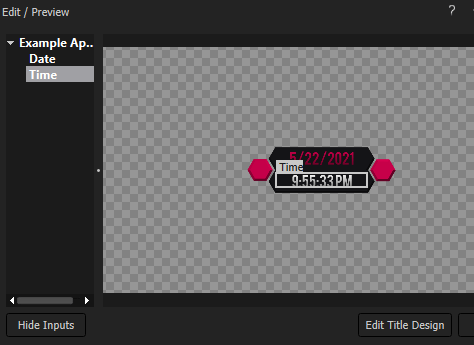
Next, assign the `Date` and `Time` variables to your title in the preview pane.
Simply drag and drop each to the desired text fields in the title.
Now it is ready for testing. Try the three buttons.
### Debugging
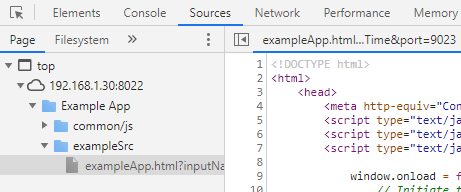
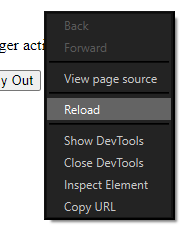
Next, directly debug the app right here in the browser. Right mouse click to access the DevTools option.
This opens a Chromium debugger window.
Choose the sources tab and select the source file in the file view on the left.
Now you are ready to debug.
If you click to the left of a line number, it inserts a break point.
Now, click on the button and the debugger will stop at this break point. You can now step through the code and see how it works.
If you make changes to the source code, it’s easy to update the code live in Captivate. Just copy the files in again and then right mouse click in the browser and choose reload.
Now that you are up and running, go to [Sample Controllers Tour](/api-examples/sample-controllers-tour.md) and dive deeper into the programming samples. Be sure to check out the [JSON Command Tester](/api-examples/json-command-tester.md), which offers a quick way to discover and explore over two dozen API commands.
---
# Agent Instructions
This documentation is published with GitBook. GitBook is the documentation platform designed so that both humans and AI agents can read, navigate, and reason over technical content effectively. Learn more at gitbook.com.
## Querying This Documentation
If you need additional information that is not directly available in this page, you can query the documentation dynamically by asking a question.
Perform an HTTP GET request on the current page URL with the `ask` query parameter, and the optional `goal` query parameter:
```
GET https://developers.newbluefx.com/api-examples/creating-a-simple-controller.md?ask=&goal=
```
`ask` is the immediate question: it should be specific, self-contained, and written in natural language.
`goal` is optional and describes the broader end goal you are ultimately trying to accomplish on behalf of the user. GitBook uses it to tailor the answer towards what is most useful for that goal.
The response will contain a direct answer to the question and relevant excerpts and sources from the documentation.
Use this mechanism when the answer is not explicitly present in the current page, you need clarification or additional context, or you want to retrieve related documentation sections.